
Start here when you are installing eventabee on a Shopify store for the first time.
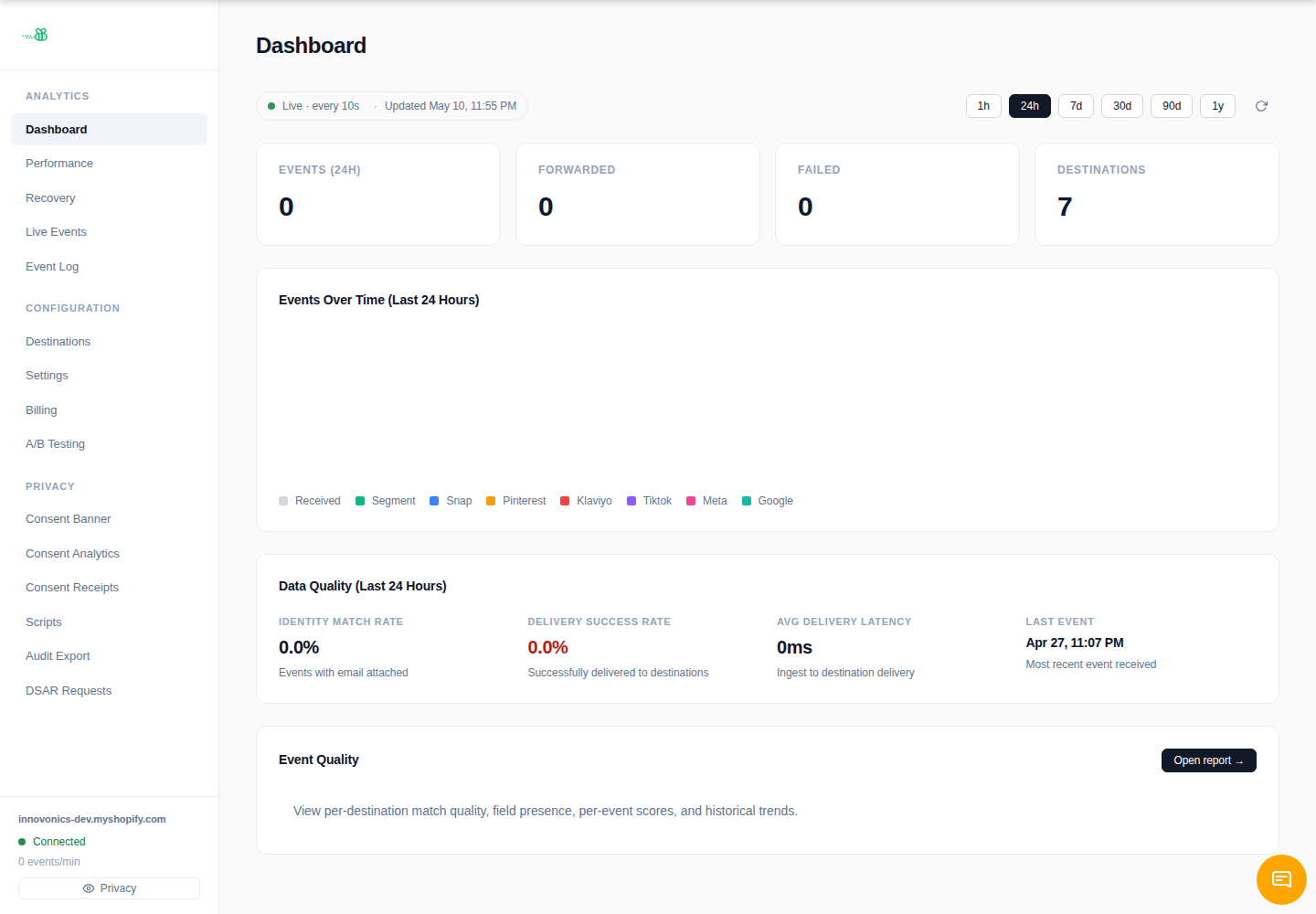
1. Install from the Shopify App Store
- Open apps.shopify.com/eventabee.
- Click Install and choose the Shopify store you want to connect.
- Review the requested permissions and continue.
eventabee uses Shopify’s app install flow. If Shopify asks you to log in or pick a staff account, use an account that can install apps and edit the theme.
2. Grant the requested scopes
Shopify shows the scopes before the app is installed. Approve them to let eventabee receive store events, manage the app embed/pixel integration, and show the in-admin dashboard.
3. Open the eventabee dashboard
After installation, Shopify redirects you into eventabee. You should see the app sidebar with these main areas:
- Dashboard — recent event and delivery health.
- Live Events — a real-time stream for testing.
- Event Log — historical events and delivery details.
- Destinations — Meta, Google, TikTok, webhook, and requested destination setup.
- Consent Banner — banner appearance, consent categories, and privacy behavior.
4. Verify your store
Check the shop name shown at the bottom of the sidebar. It should match the Shopify store you installed on, for example innovonics-dev.myshopify.com in the screenshot above.