
Use this guide immediately after installation and whenever you are checking a new theme or destination.
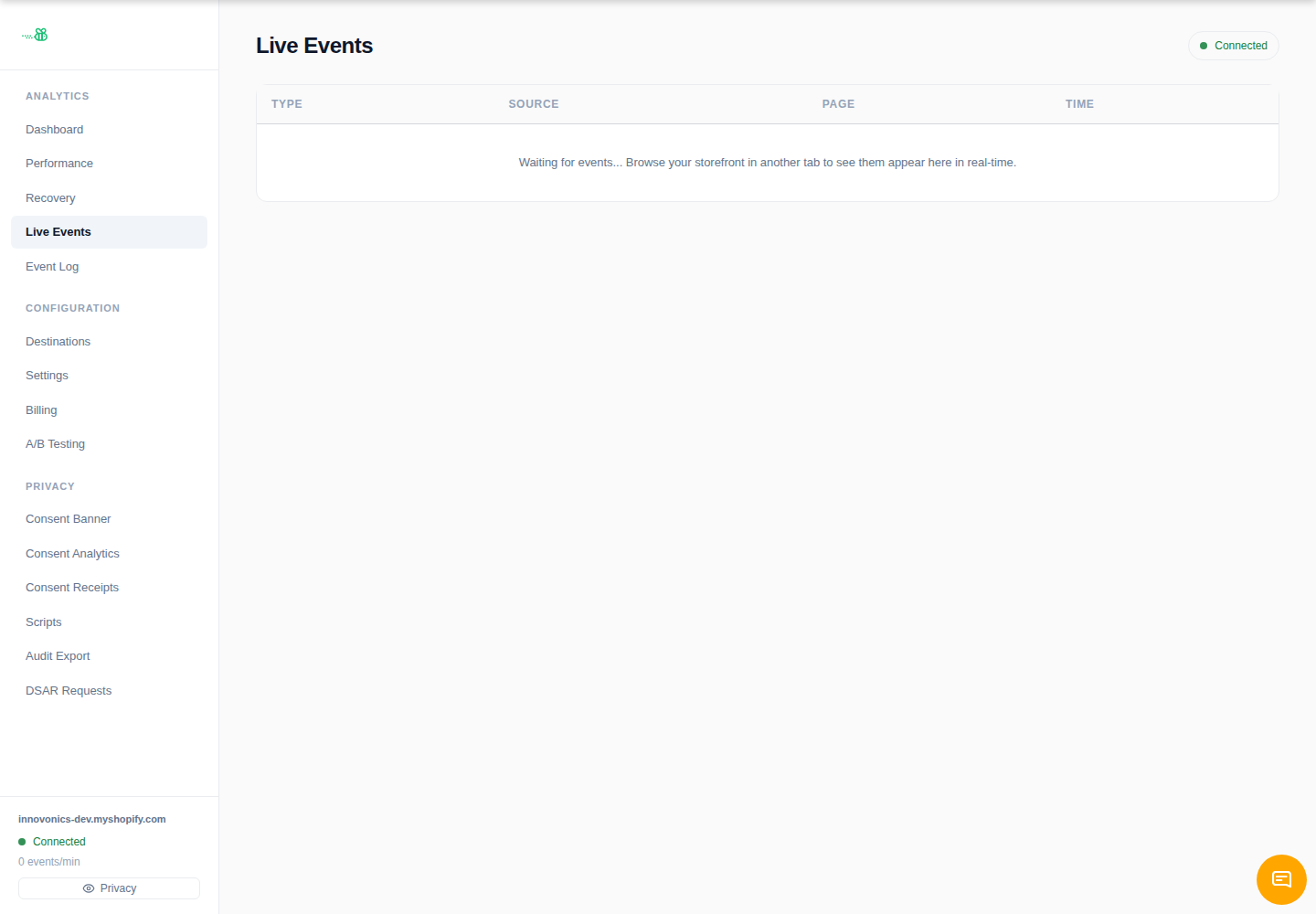
1. Open Live Events
In eventabee, click Live Events in the sidebar. This page streams new events as they arrive. The sidebar status indicator also shows whether the live stream is connected and the recent events-per-minute rate.
2. Trigger a page view
- Open your storefront in a separate browser tab or incognito window.
- Visit the home page or any product page.
- Return to Live Events and look for a recent page-view style event.
If you do not see anything, make sure the eventabee Analytics theme app embed is enabled and saved.
3. Check the Event Log
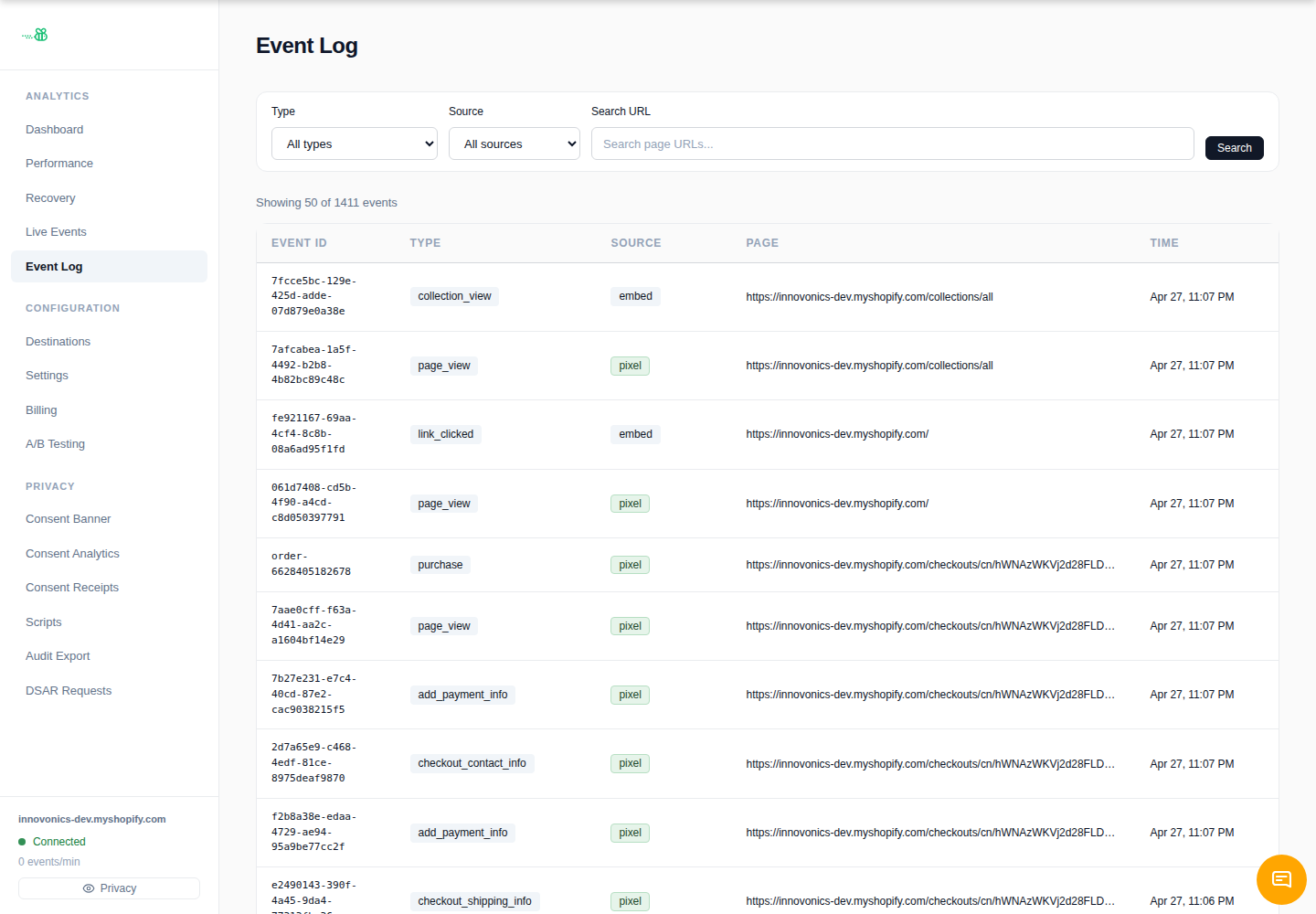
Open Event Log to confirm events are being stored, not just streamed. The log is the best place to inspect event IDs, timestamps, event type, and downstream delivery status.
4. Trigger a transactional event
For deeper testing, trigger an add-to-cart or test checkout event from the storefront. Shopify may require a real test order flow for purchase events; use Shopify’s test payment method or a development store workflow where appropriate.
Troubleshooting
- No events in Live Events: confirm the app embed is enabled, then hard-refresh the storefront.
- Live Events works but a destination has no deliveries: open Destinations, make sure the destination is Active, and check its Consent Category.
- Events are consent-blocked: configure the consent banner and test with accepted analytics/marketing categories.
- Only some event types appear: Shopify only emits certain events after the relevant customer action happens.