
Open Destinations in eventabee before starting this guide.
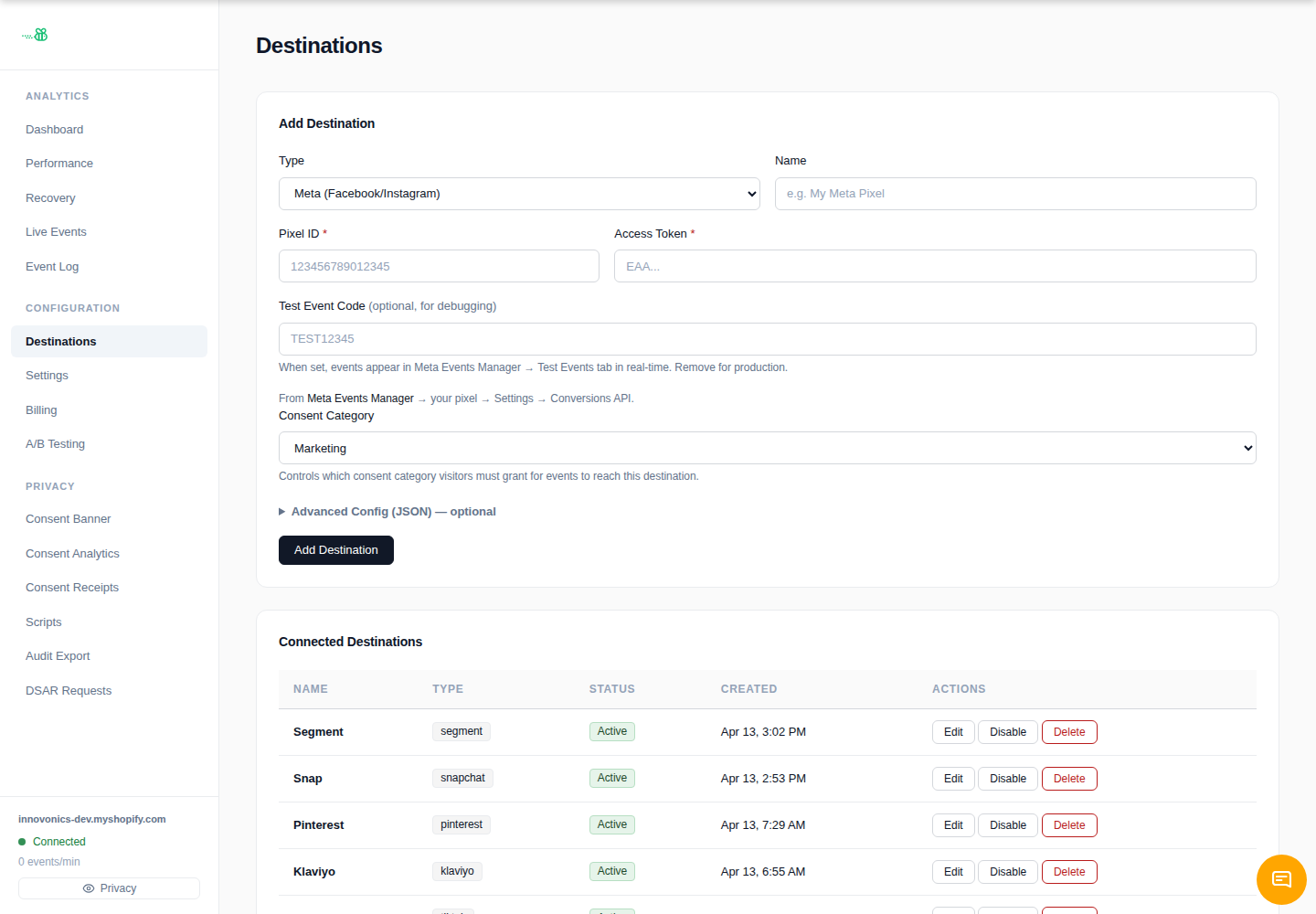
Click Add Destination, choose the destination type when it is available, give it a clear name, and save it. Then click Edit on the destination to fill in the structured fields and set the consent category.
If the type is not shown in the Add Destination menu, use Request a destination instead. eventabee currently exposes Meta, Google Analytics / Ads, TikTok, and Webhook directly in the add form; additional first-party connectors can be provisioned after review.
GA4 setup
1. Create a Measurement Protocol API secret
In Google Analytics 4, open **Admin → Data streams → Web stream → Measurement Protocol API secrets** and create a new secret for eventabee.
2. Find your Measurement ID
In the same GA4 web stream, copy the Measurement ID. It usually starts with `G-`.
3. Paste into eventabee
In the Google destination editor, fill in:
- Measurement ID — required.
- API Secret — required; stored as a secret and hidden after save.
- Consent Category — normally Analytics for GA4. If you are using Google Ads conversion fan-out from the same destination, use Marketing or confirm the consent mapping with support.
Google Ads Enhanced Conversions
The current merchant UI exposes the GA4 Measurement Protocol fields directly. Google Ads-specific conversion IDs, labels, and enhanced-conversion mappings may be handled through reviewed advanced configuration or a support-assisted setup, depending on your plan and destination configuration.
Verify
Trigger a storefront event, then check **Event Log** in eventabee and GA4's realtime/debug views. Measurement Protocol events can take time to appear in standard GA4 reports.
Troubleshooting
measurement_idshould look likeG-XXXXXXXXXX.- A wrong API secret can produce delivery failures in the event log.
- Consent-blocked events require the visitor to grant the destination’s consent category.